|
Welcome to Software Laboratory of Antillia.com. Future Windows Programming |
||||||||||||||||||||||||||||||||
|
Home
Support
|
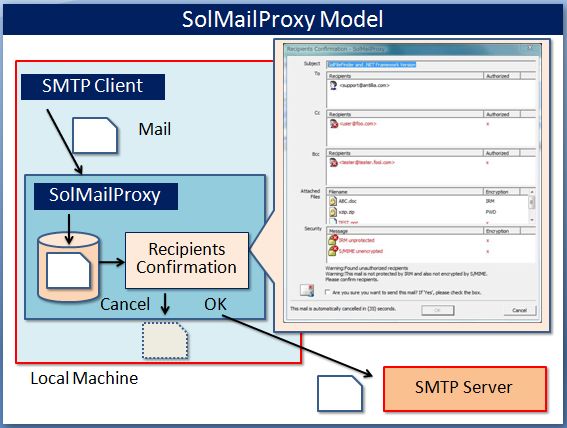
SolMailProxy DownloadYou can download the latest SolMailProxy 1.0.0.9 Free Version(Updated:20091119):Sorry no technical support is provided for this free version, but if you would like to ask any question or report bugs on this program, please refer Question and Comment 1 What is SolMailProxy?1.1 SolMailProxy ModelSolMailProxy is a local SMTP Proxy Server to prevent a mail from being delivered to unauthorized recipients. SolMailProxy receives a mail from a mail client and shows [Recipients Confirmation] Dialog (as shown below) to confirm recipients of the mail to be authorized or not. See Figure 1-1. This tool helps avoid a sensitive and unencrypted mail including personal information or confidential information of the company to be delivered to carelessly, mistakenly chosen or unidentified recipients. NOTE:This program runs on the Windows 7, Vista and XP as an SMTP Proxy Server(Not WebMail Proxy). Figure 1-1 SolMailProxy Model
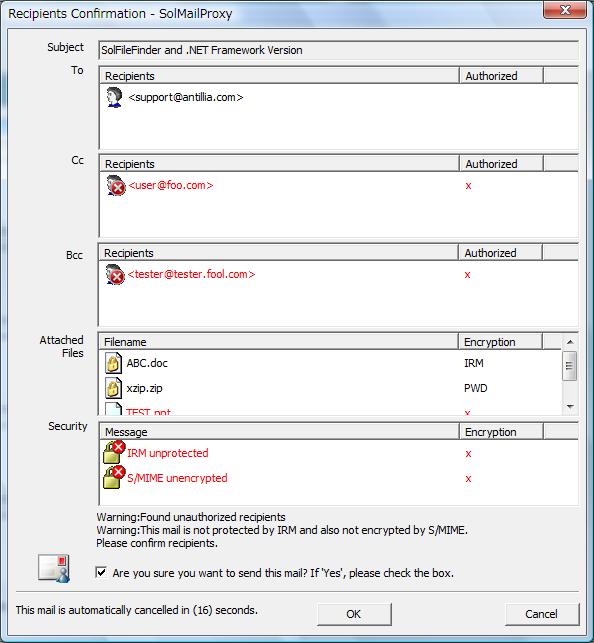
1.2 Recipients Confirmation Dialog [Recipients Confirmation] Dialog shows the following information on the mail sent from an SMTP Mail Client such as Winodws Mail, Microsoft Office Outlook and Mozilla Thunderbird. 1. All (To, Cc and Bcc) recipients. Lists up recipients with authorized or unauthorized icons. 2. Attached files information. Lists up file names only withoug checking them to be ecnrypted or not. 3. Security information. Shows the message to be protected/unprotected by IRM or encrypted/unencrypted by S/MIME. Now, you have a final chance to decide to send or retract the mail by checking the recipients and security(encryption) information of the attached files and the message. Figure 1-2 [Recipients Confirmation] Dialog
1.3 Attached Files SolMailProxy checks attached files to be encrypted or not by IRM (Information Rights Managment) or PWD (password) for Microsoft Office 2003/2007, Acrobat Adobe PDF and ZIP files. The attached files to be checked by this tool are the following.
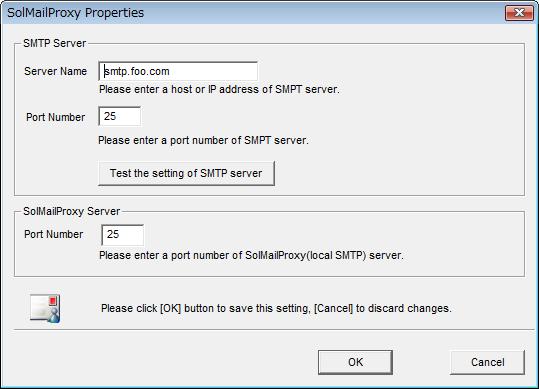
1.4 Version History 2 SolMailProxy Settings1. Run SolMailProxy program. SolMailProxy icon2. At the first time, the following [SolMailProxy Properties] Dialog will be shown. See Figure 2-2. 3. Please enter SMTP Server host name or IP address. 4. Please enter SMTP Server port number. Default value is 25. 5. Please click [Test the setting of SMTP server] to test the setting. 6. Please enter Port Number to this SolMailProxy server.Default value is 25. Figure 2-1 [SolMailProxy] Icon on TaskTray
Figure 2-2 [SolMailProxy Properties] Dialog
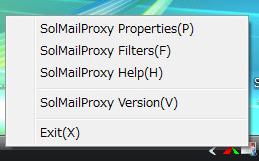
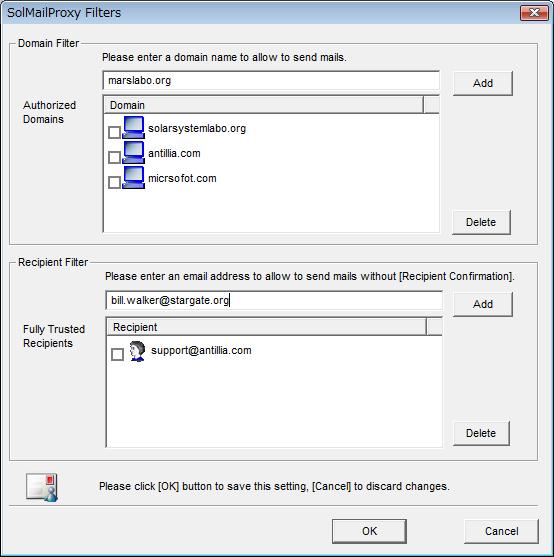
3 SolMailProxy Filters1. Run SolMailProxy program.2. Please click the mouse right button on the [SolMailProxy] Icon on the TaskTray. 3. [SolMailProxy] Menu will be shown.See Figure 3-1 4. Please select [SolMailProxy Filters] item on the [SolMailProxy] Menu. 5. [SolMailProxy Filters] Dialog will be shown. See Figure 3-2. 6. Please enter authorized domain names, and click [Add] button. To remove already added items, please check the checkboxes of the items and click [Delete] button. 7. Please enter trusted email address, and click [Add] button. To remove already added items, please check the checkboxes of the items and click [Delete] button. Please be carefull to enter trusted recipients, because [Recipients Confirmation] Dialog will NOT be displayed for emails that all recipients are fully trusted. Figure 3-1 SolMailProxy Menu
Figure 3-2 [SolMailProxy Filters] Dialog
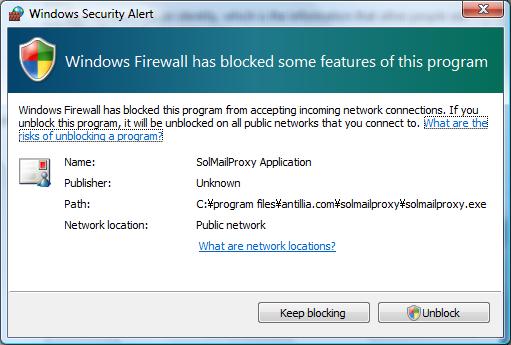
4 Windows Firewall SettingAt the first startup time of SolMailProxy, if Windows Firewall were active, the following [Windows Security Alert] Dialogwould be shown. Please click [Unblock] button. Figure 4-1 [Windows Security Alert] Dialog
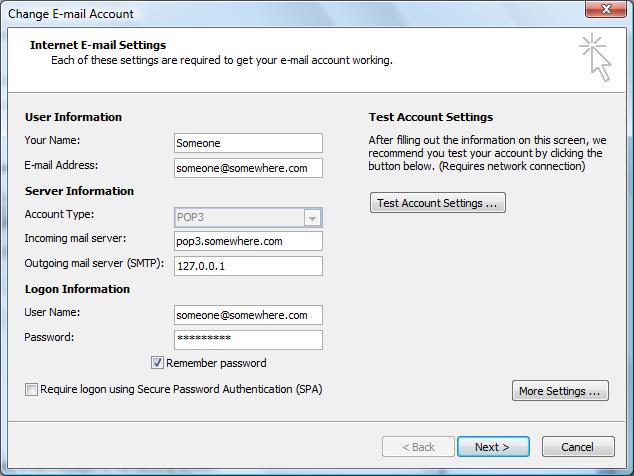
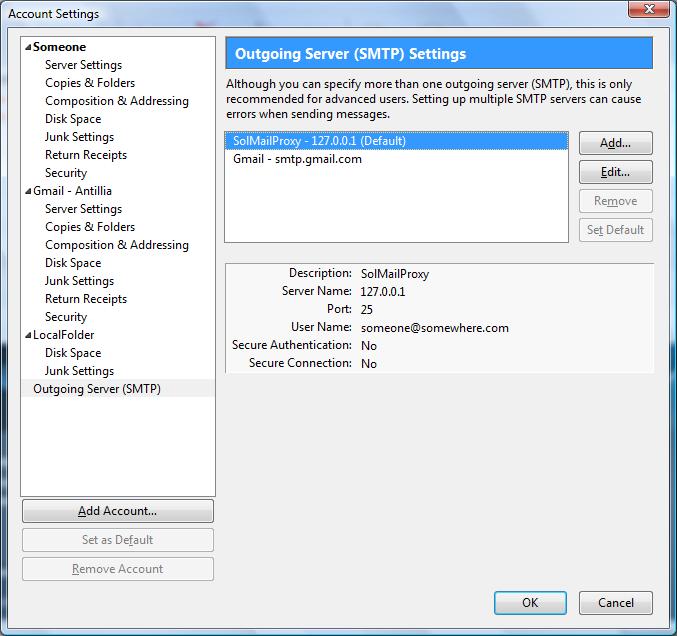
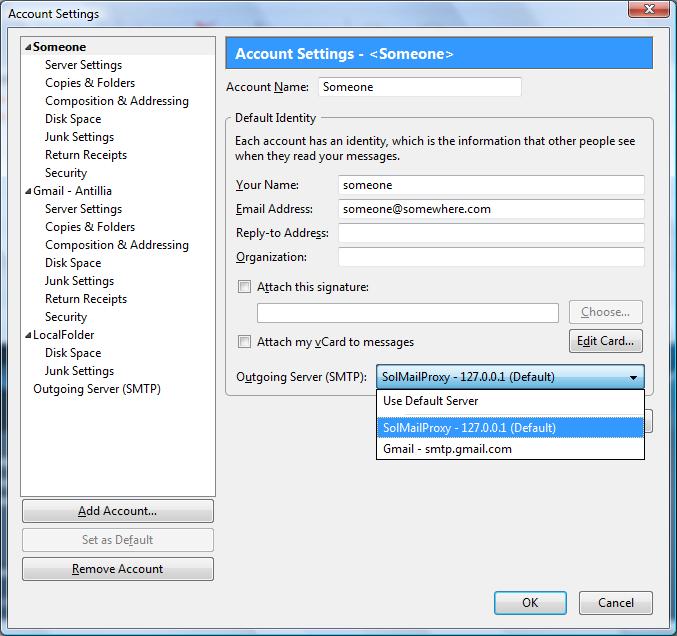
5 Mail Client SMTP Server Setting1. Run your Mail Client.For example:Microsoft Office Outlook or Mozilla Thunderbird. 2. Select [Tool] menu from the menu bar. 3. Select [Account settings] from the pulldown menu. 4. On [Account settings] dialog, please set localhost address 127.0.0.1 to the [Outgoing SMTP Server]. See Figure 4-1. 5. On [Account settings] dialog, please set the port number of SolMailProxy to [Outgoing SMTP Server]. See Figure 4-2. 6. On [Account settings] dialog, for each account, please set [SolMailProxy - 127.0.0.1(Default)] to Outgoing Server (SMTP). See Figure 4-3. Figure 5-1 [Account Settings] for Microsoft Offce Outlook
Figure 5-2 [Account Settings] for Outgoing Server (SMTP) of Mozilla Thunderbird
Figure 5-3 [Account Settings] for each account of Mozilla Thunderbird
6 How to use it1. Create a mail and send it from your mail client.2. SolMailProxy receives the mail, and the follwing [Recipients Confirmation] Dialog will be shown. Please confirm the recipients of the mail to be authrozied or not to be carelessly mistakenly chosen. Note that [Recipients Confirmation] Dialog would NOT be displayed for emails that ALL recipients were fully trusted. Those emails will be sent without SolMailProxy Confirmation Dialog Interface.(Version 1.0.0.9) 3. If you want to send this mail, please check the check box and click [OK] button. 4. If you want to cancel this mail, please click [Cancel] button. Please note that this mail will be automatically cancelled within 40 seconds after this dialog will be displayed even if you don't click [Cancel] button. Figure 6-1 [Recipients Confirmation] Dialog
Last modified: 19 Nov 2009 Copyright (c) 2008 Antillia.com ALL RIGHTS RESERVED. |