|
Welcome to Software Laboratory of Antillia.com. Future Windows Programming |
||||||||||||||||||||||||
|
Home
Support
|
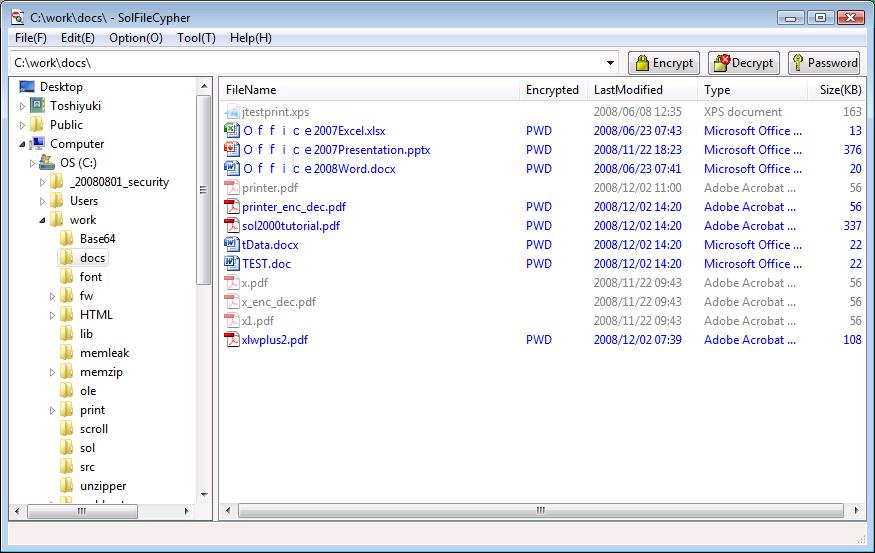
1 What is SolFileCypher?1.1 SolFileCypherSolFileCypher is a Windows GUI tool to encrypt or decrypt multiple Office 2003/2007 and Acrobat PDF files by passwords at one time.This tool helps encrypt or decrypt quickly a lot of Office and PDF files in a batch without entering a password into [Password] Dialog for each file respectively. SolFileCypher runs on the Windows Vista/XP or Windows Server 2003/2008. To run SolFileCypher, the following programs should be installed. SolFileCypher uses the applications of Word, PowerPoint and Excel to encrypt and decrypt Office files. For economey, SolFileCypher uses the free pdftk program (http://www.pdfhacks.com/pdftk/ ) to encrypt and decrypt PDF files without Adobe Acrobat. NOTE: 1.2 DownloadYou can download the latest SolFileCypher 1.0 Free Version(Updated:20081204):SolFileCypher 1.0.0.2 (SolFileCypher.zip) Sorry no technical support is provided for this free version, but if you would like to ask any question or report bugs on this program, please refer Question and Comment 2 SolFileCypher User Interface2.1 SolFileCypher WindowSolFileCypher has a Windows-Explorer like Window. See Figure 2-1. It has the following child windows:Figure 2-1 SolFileCypher Window
2.2 Target FilesThe target files of SolFileCypher are the following. Office 2007 XPS and ZIP files are not target of this tool.NOTE: Microsoft 2007 Office System should be installed to handle the Office 2007 specific files of Open XML Formats. Sorry, SolFileCypher doesn't support the add-on package 'Microsoft Office Compatibility Pack for Word, Excel, and PowerPoint 2007 file formats'
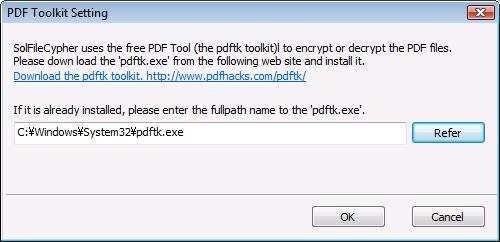
3 SolFileCypher Password3.1 Password Generation RuleSolFileCypher generates automatically a READ-PASSWORD for each Office file and a USER-PASSWORD foreach PDF file to encrypt them and decrypt them. The SolFileCypher password (READ-PASSWORD or USER-PASSWORD) is generated from the following data. SolFileCypher computes an MD5(128 bits) message-digest from the above data for each file and converts it a hexica-decimal printable string as a SolFileCypher password. The string length of a READ-PASSWORD for Office file is 15 bytes, and a USER-PASSWORD for PDF file is 32 bytes. 3.2 Machine-Dependent SolFileCypher Password (Modified: 2008/12/06)The SolFileCyper password for each file may take a nearly unique (not completely unique) value which depends on themachine-specific UUID, currently logged-in user name and the filename. The automatically generated SolFileCypher password for a file can be sent to make someone on other machine open the encrypteds file by Office or Adobe Acrobat/Reader programs. NOTE: the file is derived from the case-sensitive filename. because SolFileCypher passwords depend on each machine's UUID. 4 SolFileCypher Settings1. Run SolFileCypher program.2. Please select [Tool] menu. 2.1 Please select [PDF Tool Setting] of the pulldown menu. See Figure 4-1. Please download the pdftk.exe program and install it. Figure 4-1 PDFTK Setting
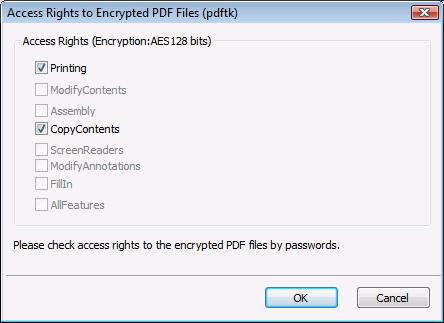
2.2 Please select [PDF Access Rights] of the pullown menu. See Figure 4-2. Please check access rights to encrypted PDF files. Figure 4-2 PDF Access Rights
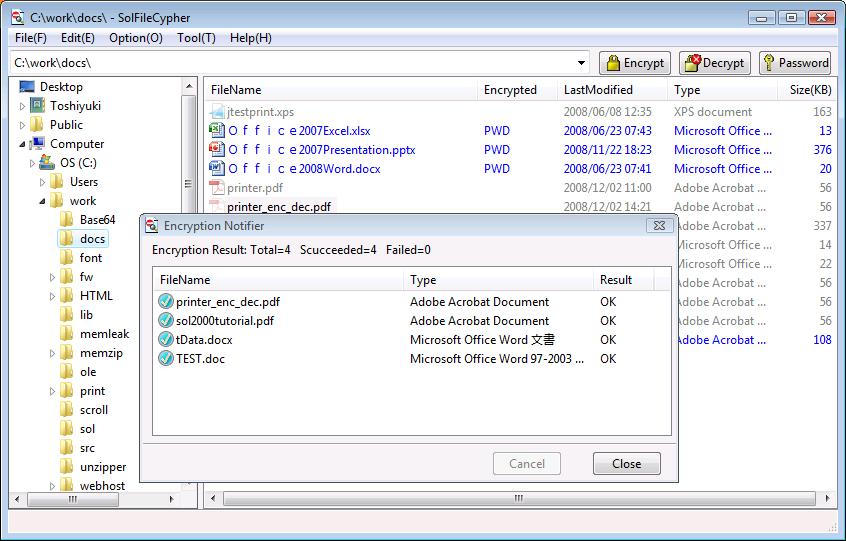
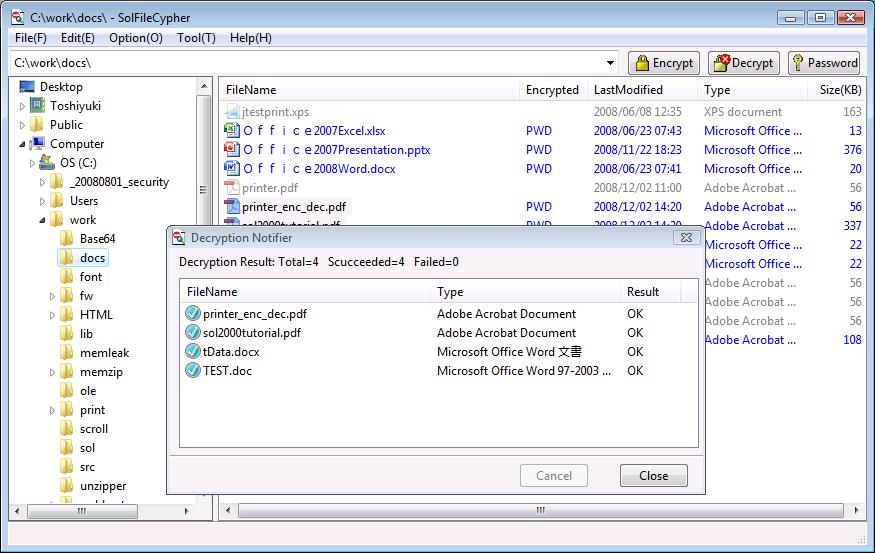
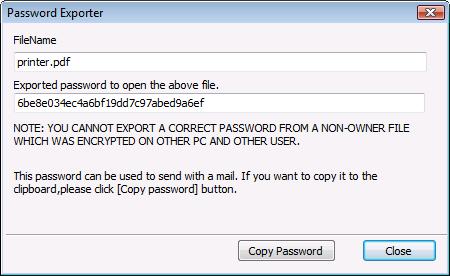
5 How to use it1. Run SolFileCypher program in your desktop, you'll get a Windows-Explorer like window. See Figure 2-1.2. Select a drive or folder in the left pane of the window. 3. Select files to encrypt or decrypt in the left pane of the window. 4. To encrypt the selected files, click [Encrypt] button on the upper right of the the window. Or select [Encrypt] item of a context menu in the right list view pane.See Figure 5-1. [Encryption Notifier] Dialog shows the result of the encryption operation. 5. To decrypt the selected files, click [Decrypt] button on the upper right of the the window. Or select [Decrypt] item of a context menu in the right list view pane.See Figure 5-2. [Decryption Notifier] Dialog shows the result of the decryption operation. 6. Select an encrypted file to get the password. 7. To get a password for the selected file, click [Password] button on the upper right of the window. Or select [Password] item of a context menu in the right list view pane.See Figure 5-3. Please click [Copy Password] button in the [Password Exporter] Dialog to copy the passowrd to the Windows clipboard. by Office or Adobe Acrobat/Reader programs.(Added: 2008/12/06) because the automatically generated password depends on that machine's UUID. Adobe Acrobat/Reader, even if not having SolFileCypher. Figure 5-1 SolFileCypher Encrypt
Figure 5-2 SolFileCypher Decrypt
Figure 5-3 SolFileCypher Password
Last modified: 6 Dec 2008 |